
Instagram Story Fonts: How to Change Them, Style Your Text and Use Fancy Fonts Safely
· 4 min read · Markdown
To change the font on an Instagram Story, tap the Aa text tool, type your text and tap the font button at the top to cycle through Instagram’s styles. Your bio, captions and comments have no font setting – “fancy fonts” there are Unicode symbols copied from a font generator. Most of those symbols are read badly by screen readers and aren’t matched by Instagram search, so keep your name and key words in normal text.
Instagram is generous with fonts in one place and strict everywhere else: Stories and Reels have a set of text styles, while your bio, captions and comments use one system font. This guide covers both – and the accessibility catch most font guides leave out. If you want the look without styling every line, Minimal templates already pair thin type with a single photo.
How to change fonts on an Instagram Story
- Open the Story camera and add a photo or video (or swipe to Create for a plain background).
- Tap Aa and type your text.
- Tap the font button at the top of the screen; each tap switches to the next style. The button shows the current style’s name.
- Use the slider on the left to resize, and the colour dots at the bottom to recolour.
- Tap outside the text to finish; pinch and drag to place it.
Instagram adds and renames styles from time to time. Commonly reported names include Classic, Modern, Neon, Typewriter and Strong; newer versions also show styles like Editor, Signature, Bubble, Squeeze and Poster. If you don’t see a style a guide mentions, update the app – or it may have been renamed.
Which Story font for what
| You’re writing | Pick a style that is | Why |
|---|---|---|
| A headline (“Weekend dump”) | Bold, condensed or all caps | Reads at a glance |
| A quote or a feeling | Script or serif | Looks handwritten, softer |
| A list (“3 things this week”) | Typewriter or monospace | Lines stay aligned |
| A date or a number | Bold sans | Clear at small sizes |
| Small print (credits, @tags) | Plain sans | Doesn’t compete with the photo |
Two fonts per Story is plenty: one for the headline, one for everything else.
6 ways to make Story text look designed
- Background box: tap the highlighted A icon to put a solid or translucent box behind the text – the easiest way to keep it readable on a busy photo.
- Pick colour from the photo: tap the eyedropper and touch the photo to match a colour from it.
- Align it: tap the alignment button to switch between left, centre and right; left-aligned lists look tidier.
- Animate it: tap the animation button next to the font and Instagram makes the text appear with motion.
- Shadow trick: type the same text twice in two colours and offset one slightly for a drop shadow.
- Leave the edges free: keep text out of the top and bottom of the screen where Instagram shows your name and the reply bar – see Instagram Story size and safe zones.
Fancy fonts for your bio, captions and comments
Outside Stories there is no font setting. Font generators work by swapping each letter for a Unicode symbol that looks like it – 𝐛𝐨𝐥𝐝, 𝓈𝒸𝓇𝒾𝓅𝓉, ⓑⓤⓑⓑⓛⓔⓢ and so on.
- Open our free Instagram font generator and type your text.
- Tap Copy next to a style.
- On Instagram, go to Edit profile (or a caption or comment) and paste.
- Check how it looks on both iPhone and Android – a few symbols don’t exist on older phones.
The catch: screen readers and search
These symbols aren’t letters, and software treats them that way:
| Style | Screen readers | Instagram search |
|---|---|---|
| Normal text | Reads it | Finds it |
| Wide (Wide), strikethrough, underline, spaced | Mostly reads it | Usually doesn’t match |
| Bold, italic, script, gothic, outline, sans variants | Reads symbol names one by one, or skips them | Doesn’t match |
| Bubbles, squares | Reads symbol names, or skips them | Doesn’t match |
So: fancy fonts are fine for a single decorative word (“✨ 𝓉𝒽𝒶𝓃𝓀 𝓎ℴ𝓊”), but never for your name, username, a link, a price or anything people need to read. Accented letters (é, ç, ş, ü) and emoji have no look-alikes and stay as they are.
Skip the fonts: start from a designed Story
If you’d rather not pick fonts at all, story templates come with the text already designed – matched to the layout and the photos. In Allapulla every template is animated, so the text moves too; change the words and share. See how to make an animated Instagram Story and add a song with how to add music to an Instagram Story.
Frequently asked questions
How do I change the font on my Instagram Story?
Open the Story camera, tap Aa (or the text icon), type your text, then tap the font button at the top of the screen to switch between Instagram’s text styles. The button shows the current style’s name.
How many fonts does Instagram have for Stories?
Around ten. Commonly reported names include Classic, Modern, Neon, Typewriter and Strong, and newer app versions show styles such as Editor, Signature, Bubble, Squeeze and Poster. Instagram renames and adds styles from time to time, so the list in your app is the one that counts.
Can I change the font of my Instagram bio?
Not with a setting. You can paste text made of Unicode look-alike symbols from a font generator into your bio. Keep your name in normal text so people can still find you in search.
Are fancy fonts bad for accessibility?
Mostly, yes. Screen readers often read each symbol by its technical name or skip it, so a fancy caption can become unreadable for blind and low-vision followers. Use them for a word or two of decoration only.
Why can’t people find my name written in a fancy font?
Instagram search matches normal letters. A name written in Unicode symbols is made of different characters, so it doesn’t match what people type.
Can I add my own font to Instagram Stories?
Not inside Instagram. Design the text in another app or use a story template with designed text, save the image or video, then share it to your Story.
Quotes Instagram story templates
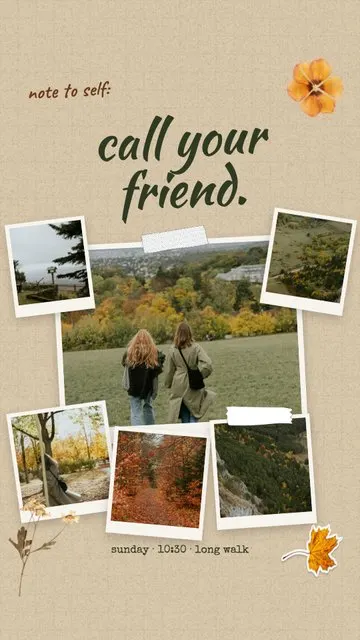 Note to Self · Call Your Friend 6 photos
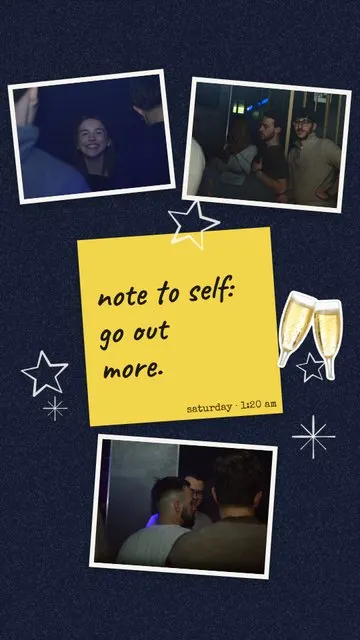 Note to Self · Go Out More 3 photos
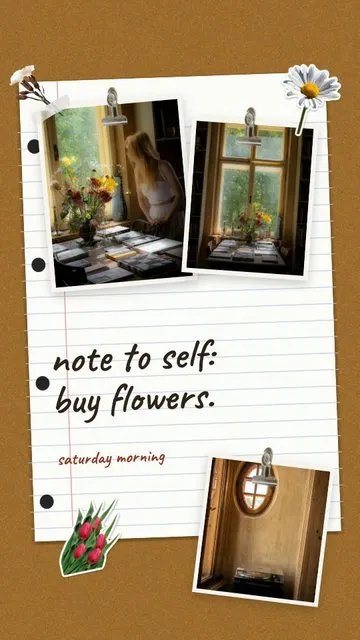 Note to Self · Buy Flowers 3 photos
 Note to Self · Slow Down 3 photos
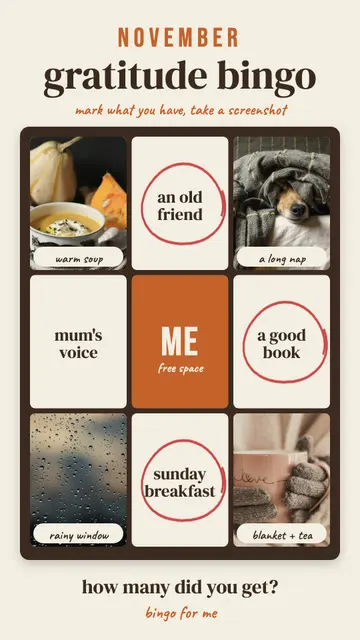 Grateful · Gratitude Bingo 4 photos
 Note to Self · Long Press 2 photos
Allapulla
Pick your photos and get Instagram story templates that fit them. New designs every week, hundreds of them free.
Add Yours Sticker on Instagram: How It Works + 60 Prompt Ideas for 2026
What the Add Yours sticker on Instagram is, how to start your own Add Yours chain, how to see who joined, and 60 Add Yours prompt ideas for photo dumps, friends, food, travel, the holidays and small businesses – with templates that leave room for the sticker.
Winter Instagram Story Ideas: 20 Cozy Ideas from First Snow to January (+80 Captions)
Winter Instagram Story ideas for every part of the season – first snow, the first day of winter on December 21, cozy nights in, winter games and January – with 20 ideas, a mood table, 80 short winter captions and free and animated winter templates.
Christmas Instagram Story Ideas: a Countdown from December 1 to 25 (+60 Captions)
Christmas Instagram Story ideas for every week of December – countdown Stories, the tree, the wish list, Christmas Eve and Christmas morning – with 15 ideas, 6 Story games, 60 short captions and Christmas Countdown templates.